









Arena Breakout: Infinite can look fantastic and run at high frame rates, but getting a consistently smooth experience is another story. You might be sitting comfortably at 140+ FPS only to suddenly drop toward 90 FPS in certain areas or during intense fights.
I recently went through this exact problem. Instead of simply turning every graphics setting to Low, I started looking at GPU usage, VRAM, DLSS, NVIDIA Reflex, shader cache and RAM performance.
The result was noticeably better performance and higher FPS.
Here are the changes that worked for me.
First: VRAM probably isn’t the problem
One of the first things I checked was VRAM usage.
With an RTX 5060 Ti 16 GB, Arena Breakout: Infinite was using approximately:
Game: 4.5–4.7 GB
Other applications: 1.5–1.6 GB
Total: roughly 6 GB / 16 GB
That’s nowhere near the VRAM limit.
So if you have plenty of available VRAM, lowering texture quality isn’t necessarily going to fix FPS drops.
In my case, I kept:
Texture Quality: Maximum
Higher texture quality primarily increases VRAM usage, and there was plenty available.
Arena Breakout: Infinite graphics settings
Instead of putting everything on the lowest possible setting, I found it better to reduce settings that can have a larger performance impact while keeping settings that the GPU can comfortably handle.
These are the settings I ended up targeting:
| Setting | Recommended |
|---|---|
| NVIDIA DLSS | On |
| DLSS Mode | Quality |
| Neural Network Model | Transformer |
| Frame Interpolation | Off |
| NVIDIA Reflex Low Latency | On |
| V-Sync | Off |
| Variable Rate Rendering | On |
| Texture Quality | Maximum |
| Resolution | Maximum |
| View Distance | Balanced |
| Shadow Quality | Basic |
| Post Processing | Basic |
| Effect Quality | Basic |
| Vegetation Quality | Basic |
| Shader Quality | Basic |
| Light Quality | Basic |
| World Detail | Basic |
| Scope Quality | Balanced |
For a competitive shooter, I’d rather have stable frametimes and good visibility than max out shadows, vegetation and visual effects.
Don’t automatically use DLSS Balanced
This sounds strange at first.
Surely DLSS Balanced should give more FPS than Quality?
Not necessarily if you’re already CPU limited.
Lowering the internal resolution reduces GPU workload. If the GPU was already waiting for the CPU, reducing GPU load further isn’t going to solve the underlying bottleneck.
That’s why I moved to:
DLSS Quality + Transformer Model
The image looks considerably better, while the GPU still has enough performance to deliver high FPS.
Enable NVIDIA Reflex
Another easy change:
NVIDIA Reflex Low Latency → ON
Reflex is particularly useful in a competitive shooter because it reduces the latency associated with the CPU/GPU rendering queue.
I leave Frame Interpolation/Frame Generation off for competitive gameplay. Generated frames can increase the displayed FPS number, but they aren’t a replacement for improving the game’s actual base frame rate and latency.
Don’t ignore your CPU
This became particularly relevant in my system:
AMD Ryzen 9 3900X
NVIDIA RTX 5060 Ti 16 GB
32 GB DDR4-3600
The RTX 5060 Ti has plenty of performance for the game, but the older Zen 2 CPU can become the limiting factor when trying to maintain very high frame rates.
This is also why simply setting everything to Low isn’t always the solution.
Watch GPU utilization when an FPS drop happens.
If you’re running at high GPU utilization and suddenly see:
140 FPS → 90 FPS
while GPU utilization also falls significantly, the GPU may simply be waiting for the CPU or game engine.
That’s when CPU and memory performance become much more interesting.
RAM tuning made a noticeable difference
This was one of the more interesting changes.
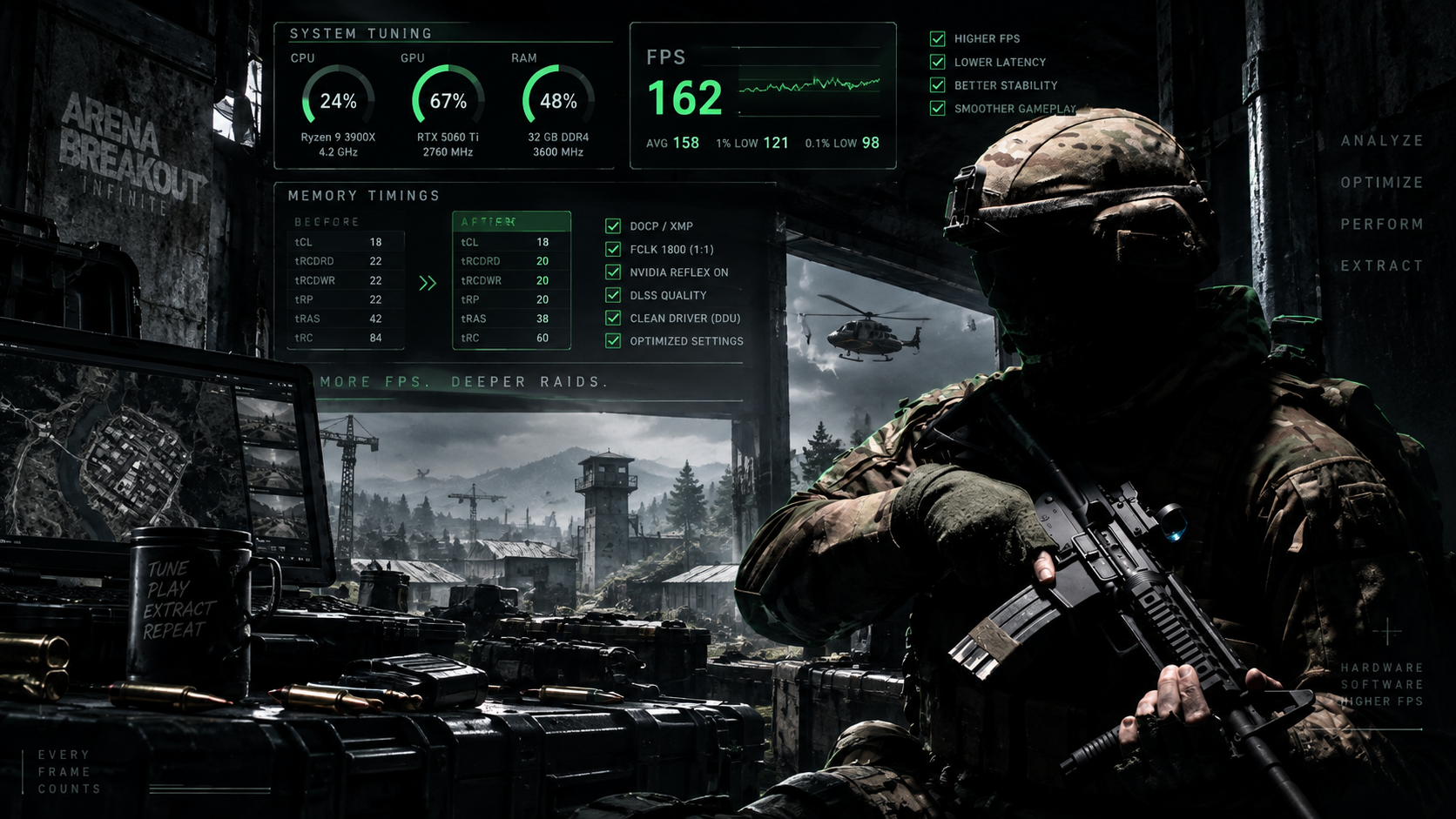
My system uses 32 GB (2×16 GB) Corsair DDR4-3600 with a Ryzen 9 3900X.
The original memory configuration was:
DDR4-3600
1800 MHz Memory Clock
1800 MHz Infinity Fabric
18-22-22-42
tRC 84
Command Rate 1T
The important part was already correct:
MCLK 1800 = FCLK 1800
That means Ryzen’s memory and Infinity Fabric were operating synchronously at a 1:1 ratio, which is generally desirable on Zen 2.
But the memory timings were fairly loose.
After testing, I changed the primary timings to:
Before
18-22-22-42
tRC 84
After
18-20-20-38
tRC 60
while keeping:
DDR4-3600
FCLK 1800 MHz
1T Command Rate
Gear Down Mode Enabled
The machine successfully trained the new timings and booted normally.
And, importantly, performance improved noticeably.
The game felt smoother and FPS increased.
A warning about copying RAM timings
Don’t blindly copy these exact values.
Different CPUs, motherboards and even two RAM kits carrying similar model names can behave differently. Memory overclocking can also appear stable initially and then produce crashes or errors later.
Change timings gradually and stability-test your RAM.
For Ryzen 3000, however, it’s definitely worth checking whether your RAM is actually running at its advertised speed and whether:
MCLK = FCLK
If you’ve bought DDR4-3600 but are accidentally running it at DDR4-2133/2400, you’re leaving performance on the table.
Clearing the GPU/shader caches also helped
At the same time as the RAM changes, I also used DDU (Display Driver Uninstaller) to clear NVIDIA-related cache/data and rebooted the PC.
After rebooting and allowing the game to rebuild what it needed, performance improved.
Because I changed the RAM timings and cleared caches around the same time, I can’t scientifically say which change was responsible for exactly how much of the improvement.
That’s worth being transparent about.
Both were part of the process that resulted in better performance.
Also remember that after deleting shader caches, games can temporarily stutter more while shaders are being rebuilt. Give the game some time and revisit the same maps before judging the results.
Don’t obsess over average FPS
This was probably the biggest lesson.
Going from:
150 FPS average → 160 FPS average
isn’t particularly exciting if you’re still constantly dropping to 80–90 FPS.
For a shooter like Arena Breakout: Infinite, I’d much rather have:
140 → 125 → 140 FPS
than:
165 → 90 → 165 FPS
The second system technically produces more FPS, but the first one will often feel smoother.
Pay attention to:
1% lows, frametime consistency, GPU utilization and CPU behavior, not just the giant FPS number in the corner.
What worked for me
The biggest improvements came from combining several smaller optimizations rather than searching for one magical setting.
I kept DDR4-3600 and FCLK at 1800 MHz, tightened my RAM from 18-22-22-42 to 18-20-20-38 with tRC 60, enabled NVIDIA Reflex, used DLSS Quality, reduced expensive graphics settings while keeping textures at Maximum, and cleared the GPU/shader cache before rebooting.
After these changes, Arena Breakout: Infinite was noticeably smoother and I was getting better FPS than before.
There’s still more RAM tuning available—my secondary timings remain fairly conservative—but stability comes first. There’s no point gaining another few FPS if your PC crashes halfway through a raid.
If you’re experiencing the same huge FPS swings in Arena Breakout: Infinite, don’t immediately blame your graphics card.
Sometimes the biggest improvement isn’t another GPU setting.
It’s making the rest of the system fast enough to keep feeding it.



let me know if you guys need help!