






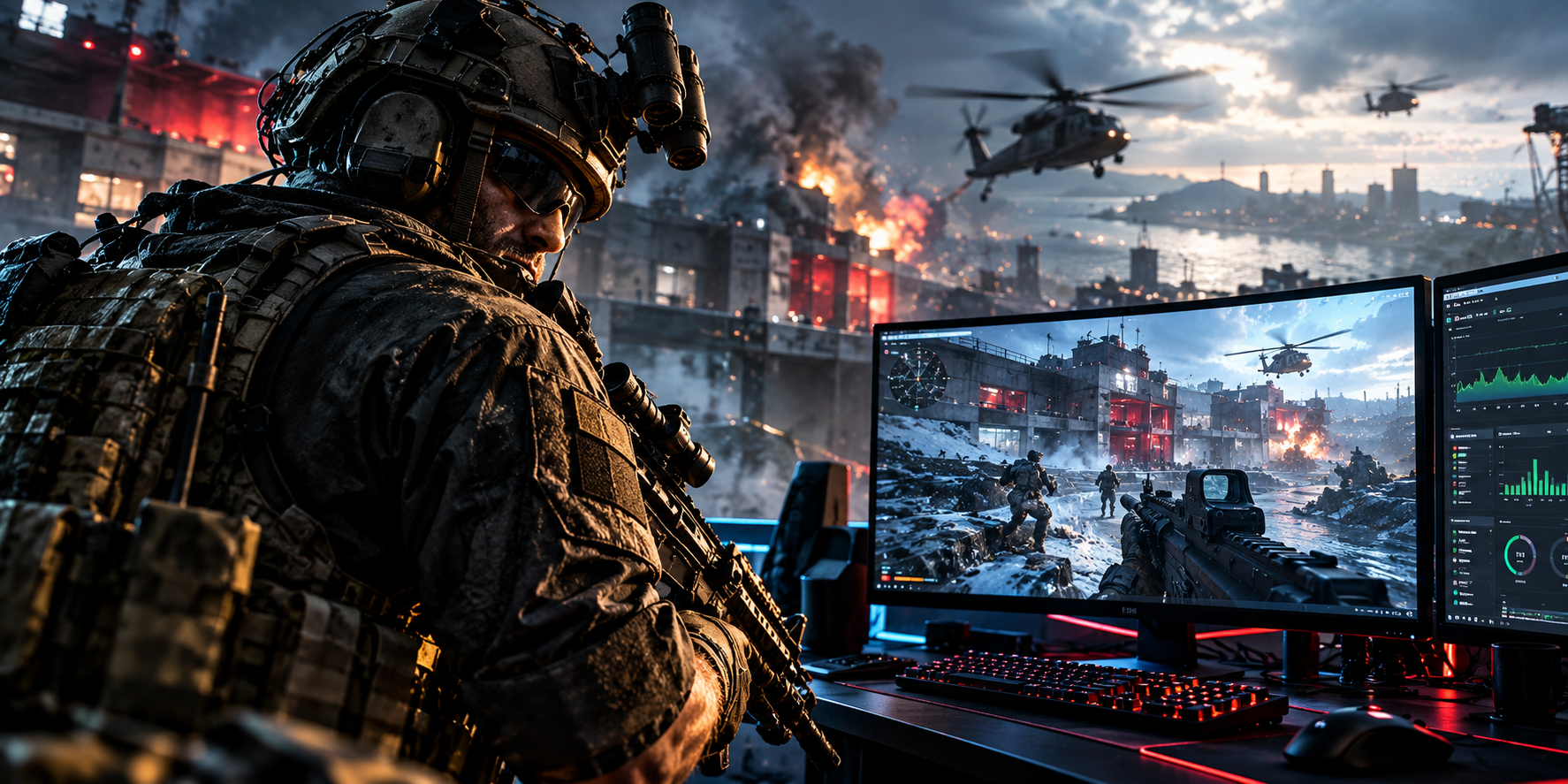
Call of Duty: Modern Warfare 4 is bringing a wide range of PC graphics options, advanced upscaling technologies and new visibility features. Here is how to prepare your PC for smoother gameplay, sharper visuals and a competitive advantage.
Call of Duty: Modern Warfare 4 is designed to support a broad range of PC hardware, from older graphics cards to high-end gaming systems. Developed by Infinity Ward in collaboration with Beenox, the PC version introduces several technologies aimed at improving performance, responsiveness and visual clarity.
Activision says the game targets 90 FPS at its recommended PC specifications, using High graphics settings in multiplayer. Players will also have access to NVIDIA DLSS 4.5, AMD FSR Redstone, Intel XeSS 3 and a built-in benchmark tool to help fine-tune performance.
But having powerful hardware does not automatically guarantee the best competitive experience. Finding the right balance between image quality, frame rate, input latency and visibility will be important for players looking to get the most out of MW4.
In this guide, we explain the official PC requirements, the graphics options worth investigating first and the settings we recommend testing for competitive multiplayer.
Modern Warfare 4 PC System Requirements
Before changing your graphics settings, make sure your PC meets the game’s published requirements.
Activision’s official specifications list the following hardware targets for launch.
| Component | Minimum | Recommended |
|---|---|---|
| Operating system | Windows 10 64-bit | Windows 11 64-bit |
| Processor | AMD Ryzen 5 1400 / Intel Core i5-6600 | AMD Ryzen 5 3600 / Intel Core i7-8700K |
| Memory | 8 GB RAM | 16 GB RAM |
| AMD graphics | Radeon RX 470 | Radeon RX 6600 XT |
| NVIDIA graphics | GeForce GTX 970 / GTX 1060 | GeForce RTX 3060 Ti |
| Intel graphics | Arc A580 | Arc B580 |
| Video memory | 3 GB | 8 GB |
| Storage | 115 GB SSD | 115 GB SSD |
These are the published launch specifications, not a guarantee of identical performance on every PC. Drivers, cooling, background applications, resolution and individual game settings can all affect frame rates.
For high-quality ray tracing at 4K with upscaling, Activision lists considerably more demanding hardware, including a Ryzen 7 3700X or Core i7-10700K, 32 GB of RAM and an RTX 5070 Ti or Radeon RX 9070 XT.
Important: MW4 also requires TPM 2.0 and Secure Boot on PC. Check these requirements before troubleshooting a launch problem that may be related to system security settings.
Source: Official Modern Warfare 4 PC specifications.
Best Graphics Settings for Competitive Multiplayer
For competitive players, the goal is not necessarily to make the game look as realistic as possible. The priority is to maintain a stable frame rate while keeping enemies, movement and important visual details easy to identify.
The following settings are a starting point to test, not a claim that every option has been benchmarked on the final release build.
| Setting | Recommended starting point | Why |
|---|---|---|
| Display resolution | Native resolution | Preserves image clarity |
| Display mode | Fullscreen, if available and stable | Test latency and performance against other modes |
| Refresh rate | Highest supported | Takes advantage of high-refresh monitors |
| V-Sync | Off for competitive play, if tearing is acceptable | Can reduce added display latency |
| Ray tracing | Off initially | Avoids an unnecessary GPU workload while tuning |
| Upscaling | Start native; test a quality preset if needed | Balances sharpness and FPS |
| Frame generation | Test separately | Can increase displayed FPS but may not improve input responsiveness |
| World Depth of Field | Off, if the option is available | Reduces unnecessary blur |
| Weapon Depth of Field | Personal preference | Keep weapon presentation clear |
| Motion blur | Off, if available | Helps preserve clarity during movement |
| Film grain | Off or minimum, if available | Reduces visual noise |
| Field of view | Start around 100–110, then adjust | Balances peripheral awareness and target size |
Menu names and available options may differ in the final game. Use these values as a practical baseline, then evaluate actual performance rather than assuming one preset is best for everyone.
1. Find the Right Resolution
Resolution has a major influence on GPU workload.
At 1080p, the graphics card has fewer pixels to render than at 1440p or 4K. This can make it easier to reach very high frame rates, particularly when the GPU is the limiting component.
At 1440p, players can gain a noticeable improvement in image detail while retaining a competitive experience with suitable hardware. At 4K, the additional workload can be substantial.
Start with your monitor’s native resolution. If performance is lower than expected, test an upscaling option before reducing several other settings at once.
2. Choose an Upscaling Technology
Modern Warfare 4 supports multiple upscaling technologies, according to Activision:
- NVIDIA DLSS 4.5: Available on supported NVIDIA RTX hardware.
- AMD FSR Redstone: AMD’s upscaling technology for supported configurations.
- Intel XeSS 3: Intel’s upscaling solution for compatible hardware.
- Filmic SMAA T2X: An anti-aliasing option intended to reduce visible jagged edges.
Start by testing the appropriate quality mode for your GPU. If you need more performance, compare balanced or performance modes while checking whether distant targets remain easy to identify.
Do not judge upscaling solely by the FPS counter. A higher frame rate is useful, but image reconstruction, ghosting and fine-detail clarity also matter in a competitive shooter.
3. Treat Ray Tracing as an Optional Extra
MW4 supports ray tracing in Campaign, Multiplayer and DMZ. Activision says the feature improves reflections, shadows and lighting.
Those effects can make the game look more immersive, but competitive players should test their cost before enabling them.
Begin with ray tracing disabled while establishing a baseline. Once you have stable performance, enable it and compare average FPS, frame-time consistency and visual clarity. If the performance cost is significant, leaving it off may be the better choice for multiplayer.
New Features That Could Improve PC Gameplay
Modern Warfare 4 is introducing several PC-focused features that go beyond traditional graphics presets.
Enhanced FOV
The PC-exclusive Enhanced FOV feature uses lens effects to expand the field of view around the edges of the display without changing the centre in the same way as a conventional FOV adjustment.
This could be useful for players who prefer a moderate central field of view while retaining greater peripheral awareness. Test it against your normal FOV setting to determine whether it improves target recognition and comfort.
Improved Visibility
Activision has also announced changes intended to make players easier to see during combat. These include updated visual settings, a global sharpening slider for upscalers and adjustments to shading, reflections, shadow filtering and screen-space lighting.
The game also uses dynamic weapon visual-effects masking to help keep targets visible around muzzle effects.
These features are promising, but their real value will depend on how they perform in actual matches. Players should test visibility in both bright outdoor environments and darker indoor areas.
Separate World and Weapon Depth of Field
MW4 separates Depth of Field into World Depth of Field and Weapon Depth of Field.
This gives players more control over the appearance of the environment and weapon animations. If you prefer a sharper competitive image, start by reducing world blur and adjust the weapon setting to taste.
Sub-frame Mouse Polling
The PC version includes sub-frame mouse polling, which Activision describes as a way to improve mouse precision.
Actual results will depend on the mouse, polling configuration, CPU workload and the game’s implementation. A high polling rate is not automatically better if it introduces instability or unnecessary CPU overhead on a particular system.
Use the Built-in Benchmark Before Changing Everything
One of the most useful additions is MW4’s built-in benchmark tool. Activision says it simulates a multiplayer sequence and reports average FPS, CPU and GPU performance, ping and input latency, with additional breakdowns across different areas of the test.
This gives players a more structured way to tune their systems.
We recommend the following process:
- Update your graphics driver to a version compatible with MW4.
- Restart your PC and close unnecessary background applications.
- Run the benchmark with the initial settings.
- Record average FPS and any available CPU, GPU and latency measurements.
- Change one or two settings at a time.
- Run the same benchmark again.
- Test the result in real multiplayer matches.
Pay attention to consistency as well as average FPS. A high average can hide frame-time spikes that make aiming and movement feel less smooth.
The benchmark is a useful starting point, but it cannot perfectly reproduce every real match, map or combat situation.
How to Reduce Stuttering and Frame Drops
If MW4 feels smooth at first but starts stuttering during longer sessions, graphics settings may not be the only cause.
Try these troubleshooting steps:
Update your graphics driver. Activision lists recommended driver versions in its PC briefing. Check the latest compatible release for your card rather than assuming an older driver is optimal.
Allow shader preparation to finish. The game supports Advanced Shader Delivery on compatible PC platforms. Avoid interrupting shader preparation, and give the game time to complete its initial setup.
Monitor CPU and GPU usage. If the GPU is consistently near full utilisation, reducing GPU-heavy settings or using upscaling may help. If GPU utilisation is low while the CPU is heavily loaded, lowering resolution may have little effect.
Check temperatures and clock speeds. Thermal throttling can reduce performance over time. Monitor CPU and GPU temperatures and check that cooling is working correctly.
Keep the game on an SSD. An SSD is part of the official minimum and recommended requirements.
Avoid unnecessary overlays and background recording. Test with extra overlays, capture tools and background applications disabled if you experience stuttering.
Do not change every setting at once. Make controlled changes so you can identify which adjustment actually improves performance.
What About Streaming MW4?
Players who stream to Twitch or other platforms should tune the game and streaming software together.
A PC may run MW4 well on its own but experience frame drops once recording, encoding, browser sources and overlays are added.
For a streaming setup:
- Leave some GPU headroom instead of running the graphics card permanently at its limit.
- Use a supported hardware encoder when appropriate.
- Keep the stream output resolution separate from the game’s render resolution.
- Monitor dropped frames, encoder overload and in-game frame-time spikes.
- Test a full-length stream rather than relying on a short benchmark.
If you play at 1440p on a high-refresh monitor, you may find that a carefully tuned High or competitive preset delivers a better streaming experience than maximising every graphics option.
Is Your PC Ready for Modern Warfare 4?
The official specifications suggest that MW4 is intended to scale across a range of gaming PCs. The recommended configuration targets 90 FPS in multiplayer at High settings, while the ray-tracing specification is aimed at a substantially more powerful system.
The best settings will depend on your hardware, display and priorities. Players chasing competitive performance should start with a stable baseline, measure results with the built-in benchmark and make small changes based on actual frame rates and latency.
For now, the most sensible approach is to prioritise stability, visibility and responsiveness. Once the game has been tested across more hardware and updated with post-launch patches, performance recommendations can be refined using real benchmark data.
H4CK.SE verdict: Modern Warfare 4’s PC feature set looks promising, especially the benchmark tool, expanded visibility options and support for multiple upscaling technologies. The real test will be whether these features translate into consistent performance during live multiplayer matches.
We will continue refining our MW4 PC settings recommendations as more performance testing becomes available.
Official sources
- Call of Duty: Modern Warfare 4 PC Trailer, Tech Updates and More
- Modern Warfare 4 PC System Requirements — Activision Support
- Modern Warfare 4 on Steam
Editorial note: The settings above are recommended starting points, not the result of a completed multi-GPU benchmark. Performance can change with drivers, game updates and hardware configuration.