








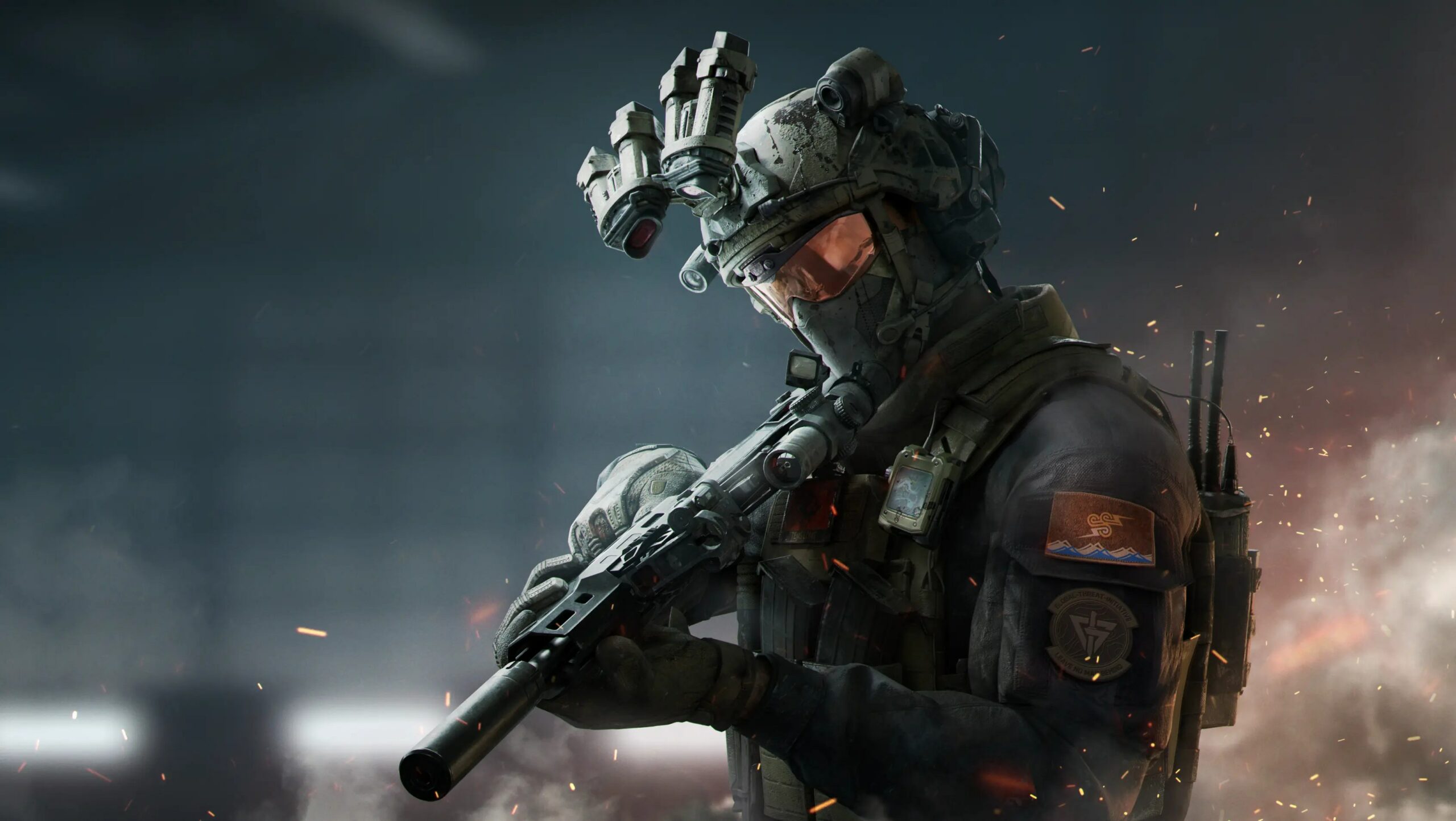
Getting the right settings in Delta Force can make a big difference. A high FPS number doesn’t necessarily mean a smooth game, and simply turning every graphics option to Low isn’t always the best solution.
The ideal setup is a balance between FPS, image clarity, input latency and stable frametimes.
This guide covers both NVIDIA Control Panel settings and the in-game graphics settings and is designed to work across a wide range of NVIDIA GeForce GPUs.
Before Changing Your Settings
Make sure your monitor is running at its maximum refresh rate in Windows.
For example:
- 144 Hz monitor → 144 Hz
- 165 Hz monitor → 165 Hz
- 240 Hz monitor → 240 Hz
- 360 Hz monitor → 360 Hz
If your monitor supports FreeSync, enable it in the monitor’s own menu.
NVIDIA supports many FreeSync displays through G-SYNC Compatible.
NVIDIA Control Panel Settings
Open:
NVIDIA Control Panel → Manage 3D settings → Program Settings
Select Delta Force.
If the game isn’t listed, use Add → Browse and select the game’s main executable.
For Delta Force, this is generally:
DeltaForceClient-Win64-Shipping.exe
Creating a dedicated profile means these settings only affect Delta Force rather than every game on your PC.
Recommended NVIDIA Settings
| Setting | Recommended |
|---|---|
| Image Scaling | Off |
| Ambient Occlusion | Off |
| Anisotropic Filtering | Application-controlled |
| Antialiasing – FXAA | Off |
| Antialiasing – Gamma Correction | On |
| Antialiasing – Mode | Application-controlled |
| Background Application Max Frame Rate | 30 FPS |
| CUDA – GPUs | All |
| Low Latency Mode | Off |
| Max Frame Rate | See below |
| Monitor Technology | G-SYNC Compatible if supported |
| OpenGL Rendering GPU | Your NVIDIA GPU |
| Power Management Mode | Prefer Maximum Performance |
| Preferred Refresh Rate | Highest Available |
| Shader Cache Size | Driver Default |
| Texture Filtering – Quality | Quality |
| Texture Filtering – Anisotropic Sample Optimization | Off |
| Texture Filtering – Negative LOD Bias | Allow |
| Texture Filtering – Trilinear Optimization | On |
| Threaded Optimization | Auto |
| Triple Buffering | Off |
| Vertical Sync | On |
G-SYNC and FreeSync
If your monitor supports variable refresh rate, this is one of the best ways to get a smooth experience.
Enable:
Monitor FreeSync: ON
Then in NVIDIA Control Panel:
Display → Set up G-SYNC
Enable:
G-SYNC/G-SYNC Compatible
For the smoothest experience, limit your FPS slightly below your monitor’s maximum refresh rate.
Examples:
| Monitor | FPS Limit |
|---|---|
| 120 Hz | 117 FPS |
| 144 Hz | 141 FPS |
| 165 Hz | 162 FPS |
| 240 Hz | 237 FPS |
| 360 Hz | 357 FPS |
You can use NVIDIA’s Max Frame Rate setting or the game’s own FPS limiter if it provides a reliable limiter.
Why Use a Frame Rate Limit?
If your GPU constantly reaches the monitor’s refresh-rate ceiling, VRR can stop being as effective.
A small FPS buffer below the refresh rate helps keep the game inside the monitor’s variable-refresh range.
For example:
165 Hz → 162 FPS
This can provide a smoother experience with fewer frame-time spikes while keeping input latency relatively low.
Low Latency Mode
NVIDIA Control Panel
Low Latency Mode: OFF
Delta Force supports NVIDIA Reflex, so it’s preferable to let the game handle latency optimization through Reflex rather than stacking driver-level Low Latency Mode on top.
Delta Force In-Game Settings
Now open:
Delta Force → Settings → Graphics
The best settings depend on whether your priority is competitive performance or visual quality.
For most players, the following is a good starting point.
Display Settings
Display Mode
Fullscreen
Fullscreen is recommended for competitive gameplay.
Resolution
Use your monitor’s native resolution whenever possible.
Examples:
1920×1080
2560×1440
3840×2160
Running at native resolution generally provides the clearest image.
V-Sync
In-Game V-Sync
OFF
If you’re using G-SYNC/G-SYNC Compatible:
NVIDIA Control Panel V-Sync: ON
Delta Force V-Sync: OFF
This prevents the game’s V-Sync implementation from conflicting with the driver-level configuration.
NVIDIA Reflex
NVIDIA Reflex
ON + BOOST
If available, this is the recommended setting for competitive players using NVIDIA hardware.
Reflex is designed to reduce system latency and improve the responsiveness between your inputs and what appears on screen.
If you don’t care about competitive latency and simply want maximum visual quality, the difference is less important.
DLSS
If your NVIDIA GPU supports DLSS, it can provide a significant performance improvement.
Recommended starting point
DLSS Quality
This is generally the best balance between image quality and performance.
If you need additional FPS:
DLSS Balanced
For lower-end GPUs, Performance may be necessary at higher resolutions, although image quality will be reduced.
DLSS Frame Generation
Frame Generation can increase the displayed FPS considerably on supported GPUs.
However, competitive players should consider leaving it OFF if their priority is minimum input latency.
For competitive Delta Force:
Frame Generation: OFF
For casual gameplay and maximum visual smoothness:
Frame Generation: ON
Lumen
Lumen is Unreal Engine’s advanced lighting and global illumination technology.
It improves the appearance of:
- Global illumination
- Reflections
- Light bouncing
- Indoor lighting
- Shadows and environmental lighting
However, it can also increase GPU usage.
Competitive recommendation
Lumen: OFF
Visual-quality recommendation
Lumen: ON
If you’re already comfortably above your monitor’s refresh rate, you can experiment with Lumen without necessarily sacrificing a smooth experience.
Shadows
Shadows can have a significant performance impact.
For competitive gameplay:
Low
For better visual quality:
Medium–High
Lower shadow settings can also reduce visual clutter and leave more GPU resources available for maintaining stable FPS.
Textures
Unlike shadows and advanced lighting, texture quality is often less damaging to performance when you have sufficient VRAM.
Recommended:
High
If your GPU has limited VRAM, reduce this to Medium.
There’s usually little reason to run extremely low texture settings on a modern gaming GPU unless you’re struggling with VRAM usage.
Motion Blur
OFF
Motion blur may look good in cinematic games, but it can make tracking enemies more difficult during fast movement.
For competitive gameplay:
OFF
Depth of Field
OFF
Depth of field adds cinematic focus effects by intentionally blurring parts of the scene.
For competitive gameplay, there’s little benefit.
Effects and Post Processing
These settings can often be reduced without significantly hurting image clarity.
Recommended:
Low–Medium
If you have plenty of GPU performance available, increase them for better visual quality.
View Distance
View distance can affect how much detail is rendered at longer distances.
Recommended:
High
For competitive shooters, maintaining visibility at longer ranges is generally more useful than saving a small amount of GPU performance.
If you’re using an entry-level GPU, reduce this to Medium.
Recommended Competitive Preset
For most NVIDIA users, start with:
| Setting | Competitive Recommendation |
|---|---|
| Resolution | Native |
| Display Mode | Fullscreen |
| V-Sync | Off |
| NVIDIA Reflex | On + Boost |
| DLSS | Quality |
| Frame Generation | Off |
| Lumen | Off |
| Shadows | Low |
| Textures | High |
| Texture Filtering | High |
| View Distance | High |
| Effects | Low/Medium |
| Post Processing | Low |
| Motion Blur | Off |
| Depth of Field |
Off |
Lower-End NVIDIA GPUs
If you’re using an older or entry-level NVIDIA GPU, prioritize the settings that have the biggest performance impact.
Reduce:
Lumen → Off
Shadows → Low
Effects → Low
Post Processing → Low
View Distance → Medium
Then use:
DLSS → Balanced or Performance
depending on your resolution and target FPS.
Mid-Range NVIDIA GPUs
For GPUs in the mid-range, a good balance is:
DLSS Quality
Textures High
Lumen Off
Shadows Medium/Low
Effects Medium
View Distance High
This provides good image quality while maintaining strong performance.
High-End NVIDIA GPUs
If you have a powerful GPU and plenty of performance headroom, you can increase the visual settings.
Try:
DLSS Quality
Textures High
Lumen On
Shadows High
Effects High
View Distance High
You can then adjust individual settings based on your FPS and GPU utilization.
Don’t Chase FPS at Any Cost
One of the biggest mistakes players make when optimizing competitive games is focusing entirely on the FPS counter.
For example, going from:
220 FPS → 260 FPS
may be much less noticeable than improving unstable frametimes.
A stable 180 FPS can feel better than an inconsistent 250 FPS.
Focus on:
- Stable frametimes
- Consistent FPS
- Low input latency
- Clear enemy visibility
- No unnecessary visual effects
Recommended Setup for Most Players
For the majority of NVIDIA users, this is an excellent starting point:
NVIDIA Control Panel
G-SYNC Compatible: ON if supported
V-Sync: ON
Low Latency Mode: OFF
Power Management: Prefer Maximum Performance
Preferred Refresh Rate: Highest Available
FPS Limit: Refresh rate minus 3 FPS
Delta Force
V-Sync: OFF
NVIDIA Reflex: ON + BOOST
DLSS: Quality
Frame Generation: OFF
Lumen: OFF
Shadows: Low
Textures: High
View Distance: High
Motion Blur: OFF
Depth of Field: OFF
Final Thoughts
There isn’t one universal Delta Force graphics configuration that is perfect for every NVIDIA GPU.
The right settings depend on your:
- GPU
- CPU
- Monitor refresh rate
- Resolution
- VRAM
- Target FPS
- Competitive vs. visual-quality preference
The best approach is to start with the recommended settings above and then adjust the most demanding options one at a time.
For competitive players, the priorities should be:
Low latency → stable frametimes → clear visibility → high FPS → visual quality
Rather than simply turning everything to Low, build your settings around what actually affects performance and visibility.
With the right combination of NVIDIA Control Panel settings, G-SYNC/FreeSync, NVIDIA Reflex, DLSS and sensible graphics settings, Delta Force can run smoothly across a wide range of NVIDIA GeForce GPUs.


Thanks for a tutorial from someone who actually plays the game.
Thanks!
Boosted me up! Thanks