

Struggling with low FPS, sudden frame drops or mouse stuttering in ROB RUN? You’re not alone. Kefir’s new multiplayer crime sandbox has attracted a large PC audience, but performance problems can make firefights, robberies and police chases frustrating. Here are the best graphics settings, Windows tweaks and mouse adjustments to help you get smoother gameplay.
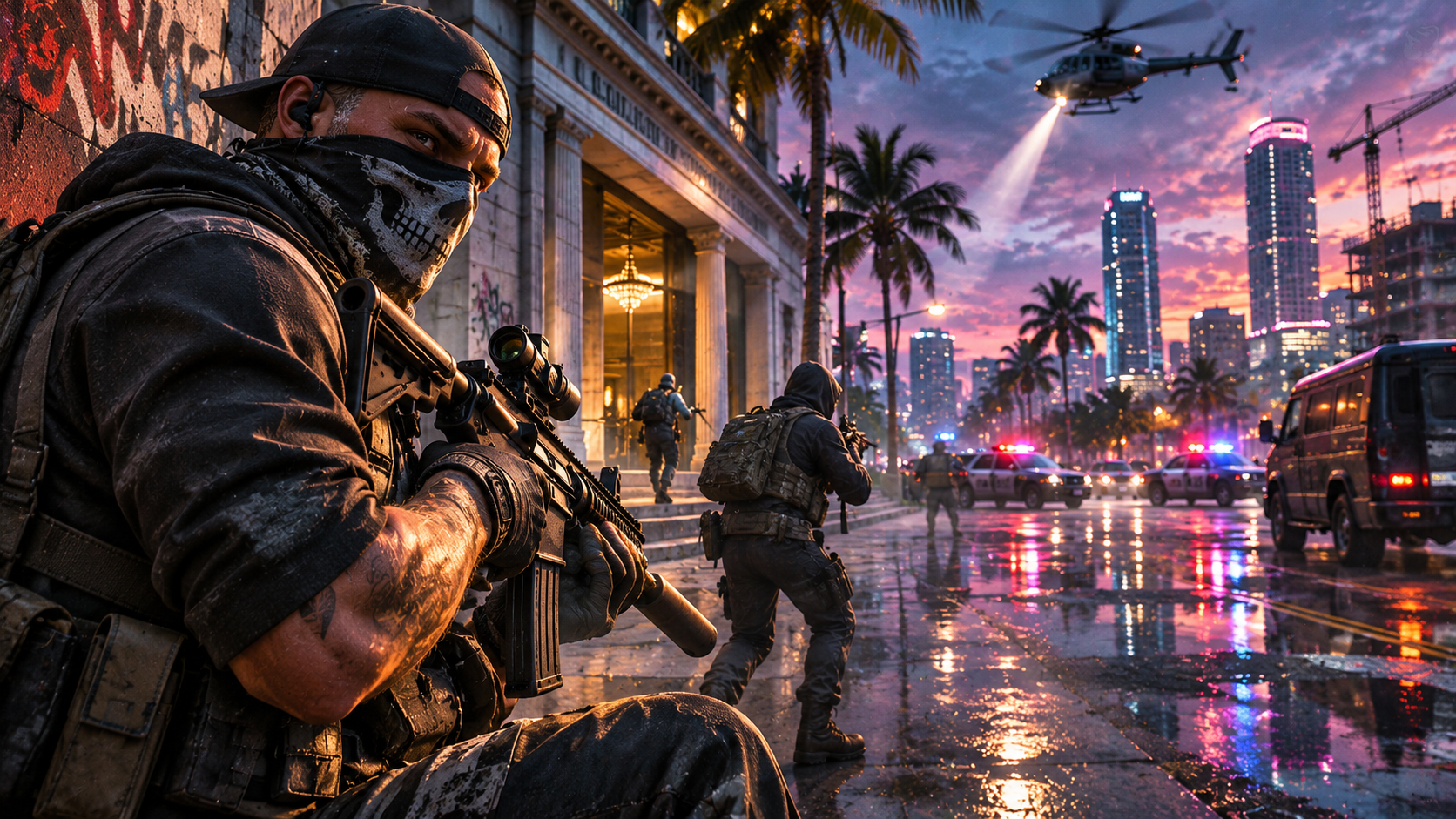
ROB RUN launched on Steam Early Access on November 4, 2026. The game combines an open-world crime sandbox with multiplayer combat, vehicle chases, robberies and a persistent online environment.
With so much happening around you, maintaining stable performance is important. A sudden FPS drop during a firefight can make the difference between winning an encounter and losing your equipment.
The good news is that there are several settings you can adjust to improve performance without making the game look terrible.
This guide focuses on three goals:
- Higher and more stable FPS.
- Less stuttering and smoother frame delivery.
- Lower input latency and better mouse responsiveness.
1. Best ROB RUN Graphics Settings
Start by opening the Settings menu from the main menu or pause menu and selecting the graphics options.
For most players, disabling expensive visual effects while keeping object visibility high is a good starting point.
Recommended settings – Balanced Performance
These settings aim to preserve image quality while reducing unnecessary GPU workload.
| Graphics setting | Recommended value |
|---|---|
| Display Mode | Fullscreen |
| Screen Resolution | Native monitor resolution |
| Render Resolution | 1.0 |
| VSync | Off |
| Frame Rate Limit | Monitor refresh rate |
| Anti-Aliasing | SMAA |
| Graphics Quality | Custom |
| Post-processing | On |
| HDR | Off |
| Motion Blur | Off |
| Depth of Field | Off |
| HBAO | Off |
| Environment Reflections | Off |
| Eye Adaptation | Off |
| Additional Light | Off |
| Additional Light Shadows | Off |
| Shadows | Disabled |
| Texture Quality | High |
| Level of Detail | 1.0 |
| LOD Crossfade | Off |
| Object Visibility Distance | Maximum |
| Water Quality | Low |
| Grass Quality | Low |
| Grass Draw Distance | Low |
| Interface Window Blur | Off |
These are recommended starting values rather than an official developer preset. Your results will depend on your CPU, GPU, resolution and the number of players and objects being rendered.
2. Maximum FPS Settings for Weaker PCs
If you’re playing on an older graphics card or struggling to maintain a stable frame rate, use a more aggressive configuration.
| Graphics setting | Maximum FPS |
|---|---|
| Display Mode | Fullscreen |
| Screen Resolution | Native |
| Render Resolution | 0.8 |
| VSync | Off |
| Frame Rate Limit | Unlimited |
| Anti-Aliasing | Disabled |
| Graphics Quality | Custom |
| Post-processing | Off |
| HDR | Off |
| Motion Blur | Off |
| Depth of Field | Off |
| HBAO | Off |
| Environment Reflections | Off |
| Eye Adaptation | Off |
| Additional Light | Off |
| Additional Light Shadows | Off |
| Shadows | Disabled |
| Texture Quality | Medium |
| Level of Detail | 0.7 |
| LOD Crossfade | Off |
| Object Visibility Distance | Maximum |
| Water Quality | Low |
| Grass Quality | Minimum |
| Grass Draw Distance | Low |
| Interface Window Blur | Off |
Why keep Object Visibility Distance high?
ROB RUN is a multiplayer game where spotting other players and potential threats is important. Lowering visibility too aggressively can make it harder to identify activity around you.
Reducing shadows, lighting and reflections is generally a better first step.
Render Resolution at 0.8 can improve performance, but it also makes the 3D image less sharp. Try 1.0 first if your GPU can handle it.
3. The Mouse Polling Rate Fix You Should Try First
This is one of the most interesting ROB RUN performance issues.
Some players experience severe FPS drops when moving their mouse. The game can appear perfectly smooth while standing still, but performance suddenly collapses when turning or looking around.
Kefir’s support guidance identifies an excessively high mouse polling rate as a cause of this problem.
A polling rate of 4,000 Hz or 8,000 Hz can create additional processing overhead in some systems.
How to fix it
- Open your mouse configuration software.
- Find the polling rate setting.
- Change it to 1,000 Hz.
- Save the setting.
- Restart ROB RUN and test the game.
If the problem continues, try 500 Hz.
| Mouse polling rate | Recommendation |
|---|---|
| 8,000 Hz | Avoid initially |
| 4,000 Hz | Avoid initially |
| 2,000 Hz | Test if 1,000 Hz works well |
| 1,000 Hz | Recommended starting point |
| 500 Hz | Alternative troubleshooting setting |
This is particularly important if your FPS drops only when moving the mouse.
It is not a universal fix for every performance problem, but it is one of the first things worth testing.
4. NVIDIA Control Panel Settings for ROB RUN
If you’re using an NVIDIA graphics card, you can also configure a dedicated profile for ROB RUN.
Open NVIDIA Control Panel:
- Right-click your Windows desktop.
- Select NVIDIA Control Panel.
- Open Manage 3D settings.
- Select Program Settings.
- Add ROB RUN if it appears in the application list.
Use these settings as a starting point:
| NVIDIA setting | Recommended value |
|---|---|
| Image Scaling | Off |
| Low Latency Mode | On |
| Max Frame Rate | Off initially |
| Power Management Mode | Prefer Maximum Performance |
| Preferred Refresh Rate | Highest Available |
| Shader Cache Size | Driver Default |
| Texture Filtering – Quality | Quality or Performance |
| Texture Filtering – Anisotropic Sample Optimization | On |
| Texture Filtering – Trilinear Optimization | On |
| Threaded Optimization | Auto |
| Vertical Sync | Off |
If you experience unstable frame pacing, try limiting FPS to a value your PC can consistently maintain instead of running unlimited.
Do not force NVIDIA settings such as Low Latency Mode Ultra or additional driver overrides without testing. Results can vary between systems and game updates.
5. Windows 11 Optimization for ROB RUN
Your Windows configuration can also affect gaming performance.
Before launching ROB RUN, check the following settings.
Enable Game Mode
- Open Windows Settings.
- Select Gaming.
- Open Game Mode.
- Turn Game Mode On.
Enable Hardware-Accelerated GPU Scheduling
If supported by your graphics card and driver:
- Open Settings.
- Select System.
- Open Display.
- Select Graphics.
- Open Default Graphics Settings.
- Enable Hardware-Accelerated GPU Scheduling.
Restart Windows if requested.
Disable unnecessary background applications
Close applications that consume CPU, memory or GPU resources unnecessarily.
Consider closing:
- Unused browser tabs.
- Background video recording.
- Unnecessary launchers.
- Unused streaming software.
- Applications performing heavy downloads.
If you use OBS while gaming, avoid closing it blindly. Instead, check its GPU and CPU usage and disable unnecessary sources or filters.
Keep your GPU drivers updated
Install the latest stable NVIDIA or AMD graphics driver for your hardware.
If a new driver introduces performance problems, consider returning to a previously stable version.
6. Install ROB RUN on an SSD
ROB RUN is an online game with a large environment and many assets.
Installing the game on an SSD can help with loading and asset streaming.
Recommended:
- Use an SSD rather than an old mechanical HDD.
- Keep sufficient free storage space.
- Avoid downloading large files while playing.
- Keep Windows and your graphics drivers updated.
An SSD will not automatically increase average FPS, but it can help reduce loading delays and some asset-streaming stutters.
7. Understand the Difference Between FPS Drops and Network Lag
Not every performance problem comes from your graphics card.
ROB RUN is an online multiplayer game, so connection problems can create symptoms that look like poor performance.
Here is how to distinguish them:
| Problem | Possible cause | What to check |
|---|---|---|
| Constantly low FPS | CPU or GPU limitation | Graphics settings and hardware usage |
| FPS drops when moving the mouse | High polling rate | Set mouse to 1,000 Hz |
| Stuttering when entering new areas | Asset streaming | SSD and memory usage |
| Delayed player movement | Network latency | Ping and connection stability |
| Rubber-banding | Network or server issue | Server connection |
| FPS drops during crowded fights | CPU or GPU workload | CPU/GPU usage and settings |
Lowering graphics settings will not fix a server-side problem or unstable internet connection.
Kefir also released a November 20 update that included network performance improvements, showing that optimization is still an active part of Early Access development.
8. ROB RUN PC System Requirements
Before changing every setting, make sure your PC meets the official requirements.
| Component | Minimum | Recommended |
|---|---|---|
| Operating System | Windows 10 64-bit | Windows 10 64-bit |
| Processor | Intel Core i5-6600K / Ryzen 5 1600 | Intel Core i5-9600K / Ryzen 5 3600 |
| RAM | 12 GB | 16 GB |
| Graphics Card | GTX 1050 Ti / RX 580 / Arc A380 | RTX 2070 / RX 5700 XT / Arc B570 |
| DirectX | Version 11 | Version 11 |
| Storage | 20 GB | 20 GB |
These are the developer’s published requirements. Meeting the recommended specifications does not guarantee a particular FPS, especially in crowded multiplayer areas.
Final Thoughts
ROB RUN is still in Early Access, and performance will likely change as Kefir continues improving the game.
The most important thing is to identify what is actually causing your performance problems before lowering every graphics setting.
If you’re experiencing FPS drops when moving your mouse, start with the polling rate. If your graphics card is struggling, disable shadows, additional lighting and reflections. If you’re experiencing rubber-banding or delayed actions, investigate your network connection instead.
With the right configuration, you should be able to improve the overall experience without sacrificing the visual clarity needed to survive in Looty Bay.
Have you found a graphics setting or performance fix that works particularly well in ROB RUN? Share your experience and help other players get smoother gameplay.